If you tried several times to login, but still fail to connect to the NM Protected Applications, contact the CSO Technical Helpdesk to guide you through the login procedure.
Please contact the Agency webmaster
A new token which has been installed on your system is by default disabled for security reasons.
You have to contact the CSO Technical Helpdesk to enable your token
The RSA SecurID Software token is based on UTC time. Your authentication to NM Protected Applications will only be successful if the UTC time of your PC is set correctly.
To check the UTC time of your PC, go to the following webpage: UTC Time
This page does not show the real UTC time, it calculates to what time the UTC time is set on your local PC, based on your time settings. If the date or time shown does not correspond to real UTC time, change your PC clock or time zone by double clicking the time display on the Windows taskbar.
Direct links to NOP, NMIR, CCMS Web
Contact directly our Technical Helpdesk (CSO) open 24/7
In case you have entered the wrong UserName and/or Passcode, the following message will appear on the Login screen: "HPDIA0201W The client supplied invalid authentication information"
Before trying to login again, do the following:
If you tried several times to login, but still fail to connect to the NM Protected Applications, contact the CSO Technical Helpdesk to guide you through the login procedure.
The PIN (Personal Identification Number) code is your personal code, chosen by yourself the first time your token was activated. This is a number between 4 and 8 digits long. If you do not remember your PIN code, you can contact our Technical Helpdesk (CSO) to have it reset.
In case your token is used by multiple users, do not forget to communicate this new PIN code to your colleagues, as the PIN code is related to the UserID.
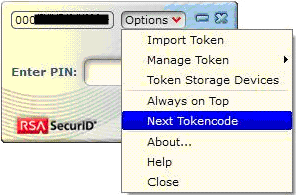
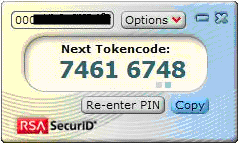
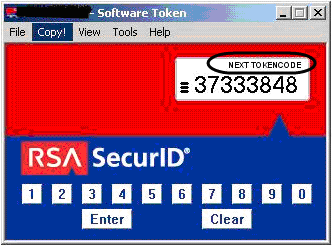
When you try to login and receive the 'Next Tokencode' message, you will have to do an extra step in order to login.

This can happen when someone has tried to login a few times with a wrong Passcode (example wrong PIN used) followed by a correct Passcode. To be sure the Passcode provided was indeed a correct code from your software token, you are requested to provide the Next Tokencode.


The passcode is the combination of your personal PIN code and of the Tokencode. It is generated by the RSA SecurID Software Token after entering your PIN code.
The Passcode is only valid for a short while. You will see the little black dashes (version 3.0.7) or the little blue boxes (version 4.1.1) disappear one by one. Once they are all gone, a new Passcode, which is also valid, will be automatically generated. Only when you see the text ‘PASSCODE’ in the display of the software token, you have a valid code to connect to NM.
If you do not see the text ‘PASSCODE’, all valid Passcodes have expired and you will have to enter your PIN code again.

RSA SecurID software token is a software-based one-time password authentication method of protecting network resources, typically used for remote access. It is a small independent program that runs on the PC and that generates every minute a random number called the token code. The SecurID software licenses are bought from RSA Security Corp, therefore we refer to RSA SecurID rather than Network Management SecurID.
NM supports 2 versions of the RSA Software Token: version 3.0.7 and version 4.1.1. If you are using Windows XP, you can choose to install version 3.0.7 or version 4.1.1 (we recommend version 4.1.1). If you are using Windows Vista or Windows 7, you need to install version 4.1.1.
The 2 versions have a different appearance and work in a slightly different way. Where differences occur, both versions will be explained.
The Software Token program can be started in the same way as any other program running under Windows: Click on Start/Programs/RSA SecurID Software Token/RSA SecurID Software Token.

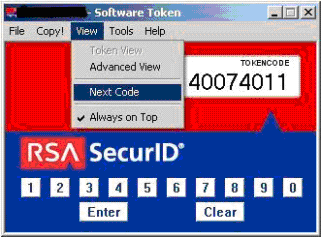
If you have a different view than the one above, click on ‘View‘ in the menu bar of the Software Token and select ‘Token View’. We recommend using the ‘Token View’ mode. The rest of the instructions are taken from the Token View mode.
The Software Token program can be started in the same way as any other program running under Windows: Click on Start/Programs/RSA/RSA SecurID Token/RSA SecurID Token.
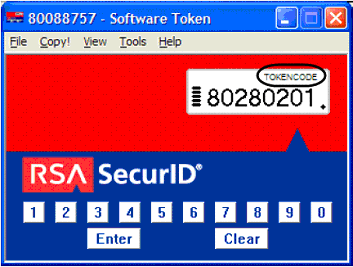
The Tokencode is a random number generated by the RSA SecurID Software Token. Every minute a new Tokencode is generated, making the previous one invalid.
Only with version 3.0.7 you can see the Tokencode before entering your PIN code or when the Passcode has expired. The code displayed by the RSA SecurID Software Token mentions ‘TOKENCODE’ in the upper right corner. This code is not valid to get access to the Protected NM application. You will need to enter your PIN code to get a valid PASSCODE
In version 4.1.1, the tokencode is hidden, as it is not a valid access code
Your 'UserName' or 'UserID' is a login name which has been assigned to you by NM. (e.g. p0xxx1). The UserName is not case sensitive.
When available again go to www.eurocontrol.int/pens or contact pens@eurocontrol.int
NM supports 3 versions of the RSA Software Token: version 3.0.7, version 4.1.1 and version 4.1.2 - see 'What is the RSA SecurID software token?'.
When available again consult the NM token software download page (http://www.eurocontrol.int/network-operations/nm-software-download) and download the version of the Software Token you need on your system. This is only to be done after your organisation has entered into an agreement with EUROCONTROL, upon reception of an email from our Customer Support service - containing this link, the instructions and a software authentication device (token or certificate).
To install the software, follow the corresponding installation procedure as described in the 'Network Manager Connection Guide'.
Send your questions to Carole Ravet
For a request for service extension, when available again subscribe via http://www.eurocontrol.int/network-operations/terminals-request-form
The users of NM Operational Services experiencing technical problems (use of tokens or certificates, transmission, terminals) which require immediate corrective action shall contact directly our Technical Helpdesk (CSO) open 24/7
Consult the NM Operational Contacts links on the left for more details.