The ADMINISTRATION button, and the attached DAA application, are aimed at AO Administrators. You may therefore not be able to see nor use these features.
However, if you think that your profile is misconfigured and that you that you should be able to access the DAA, please contact the NM Customer Support (CSO Tel: + 32 2 745 1997).
The Delegated Access Administration application allows Aircraft Operators to specify which users can perform an action in NM systems (essentially via B2B and NOP Portal) on their flights.
Click on the ADMINISTRATION button located in the NOP Header:

This opens the Delegated Access Administration window:
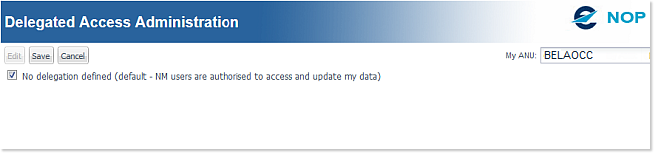
Screen layout
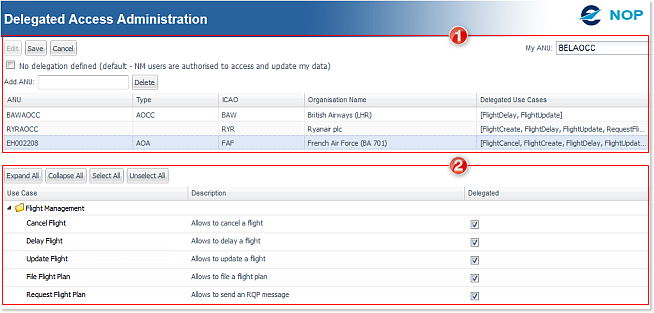
1 Organisation Panel
The Organisation panel combines the various elements at organisation level:
- My ANU: text field displaying the ANU of the organisation associated to your user profile
- Edit, Save and Cancel buttons:
- Edit - enables you to edit the settings for the organisation selected in the table;
- Save - saves the changes made to the settings;
- Cancel - discards any changes and closes the editor.
- Add ANU: text field to enter the ANU of an organisation to which you want to delegate privileges.
- Delete button: removes the selected organisation from the list.
- Organisations Table: lists all organisations for which delegations have been specified.
2 Delegation Panel
Where you manage the privileges you delegate to the organisation selected from the above list.
- Expand All / Collapse All buttons: respectively expands or collapses the Use Case folders - there is only one at present (Flight Management), but more are expected to be implemented in future releases.
- Select All / Unselect All buttons: respectively selects or unselects all the Use Case items.
- Delegations Table
- Use Case / Description: the type and description of delegation
- Delegated check box: used to select the Use Case(s) you want to delegate to the selected organisation.
The Delegated Access Administration application currently allows you to delegate the following capacities:
- Cancel a flight
- Delay a flight
- Update a flight
- File a flight plan
- Send an RQP message
Adding a delegation
Type in the ANU of the organisation to which you want to delegate capacities in the Add ANU field:

When an ANU is selected (BAWAOCC in this example), a selection panel opens, featuring a Button Bar and a table of settings:

To associate Use Cases to an organisation:
1 mark them as Delegated
2 Save the changes:

Managing Delegations
In addition to the creation of delegation profiles, you may also perform the following actions:
- Edit
- Delete
- De-activate
Edit
You can modify the DAA settings at any given time:
- select the concerned Organisation;
- click on the Edit button;
- modify the settings;
- click on the Save button.
Delete
Organisations can be removed from the Organisations Table:
- select the concerned Organisation
- click on the Delete button
De-activate
You may also wish to suspend all delegated privileges for any length of time:
- set the No delegation defined check box to 'On'
This operation will de-activate all the delegations you have specified.
They will however not be removed from the system, and you can restore them at will.
To do so, simply unckeck the No delegation defined parameter and recover the last saved situation.